Building a Custom Jira Dashboard Spacer Gadget with Forge
Jira dashboards are great - until you try to use them as a wallboard. The moment you put two columns of gadgets side-by-side, the columns drift out of alignment, section headers stop lining up with the gadgets they belong to, and your carefully designed wallboard turns into a ragged mess. This post walks through the small, free Forge app I built to solve that problem, why it works, and how it stacks up against the paid alternative.
The Problem: Two-Column Wallboards Don’t Align
The dashboard we use is a two-column layout with Rich Text section headers above groups of related gadgets. On a single column it looks fine. On a wallboard with two columns of differing content heights, the rows quickly fall out of sync and the only way to fix it is with the built-in Wallboard Spacer Gadget. This is far from ideal as the Wallboard Spacer Gadget has a fixed height and is visually unappealing.
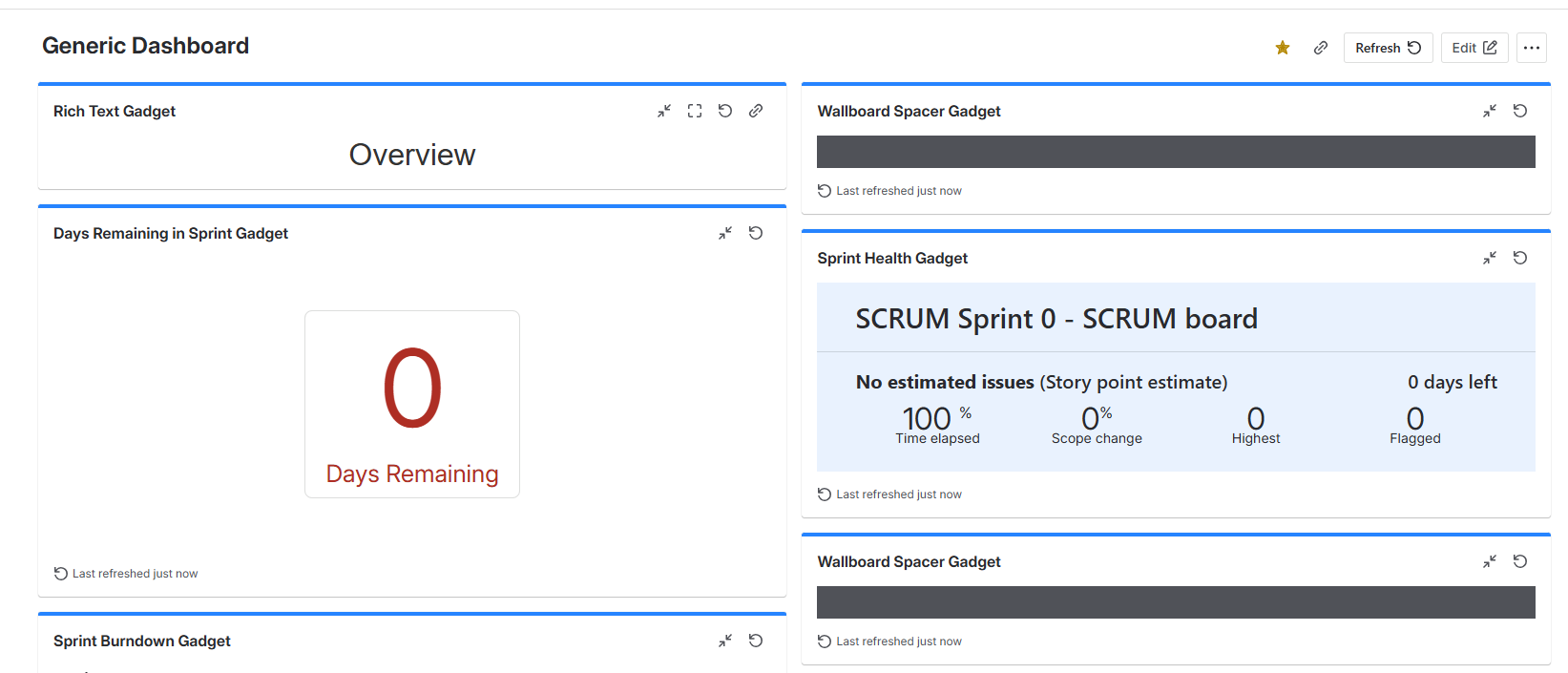
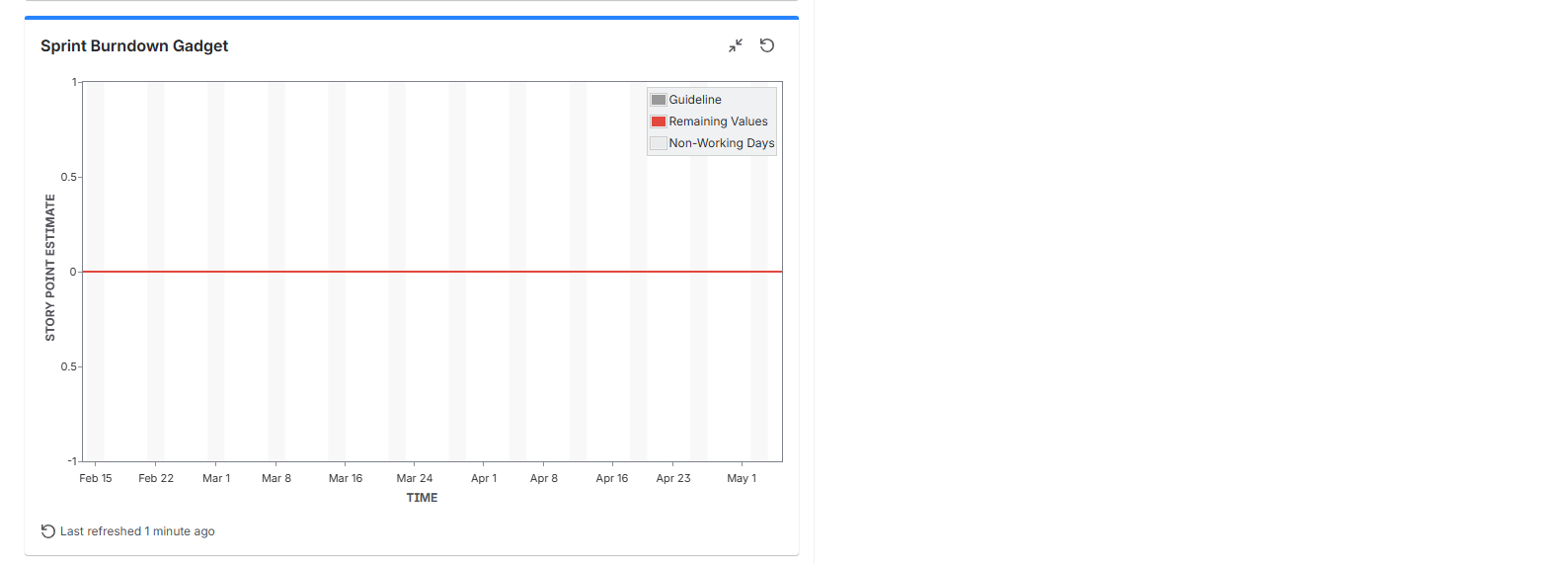
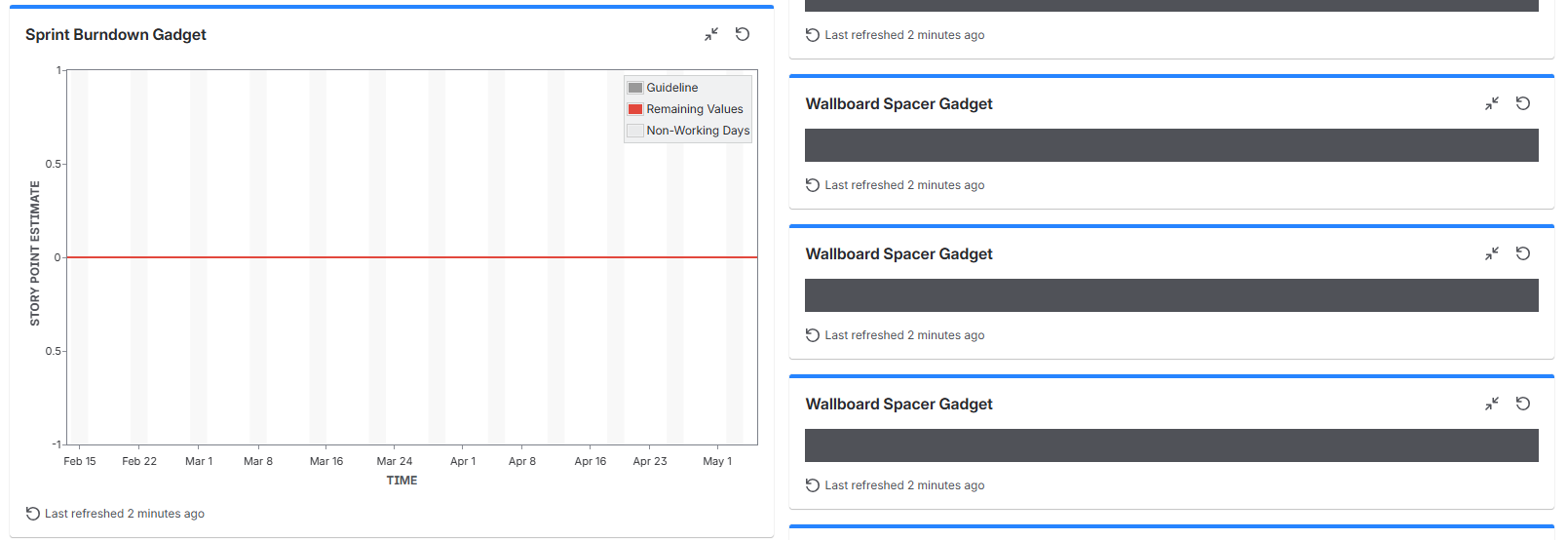 By the middle of the dashboard we have to include multiple Wallboard Spacer Gadgets to fill the space before we reach the “Workload” section of the dashboard.
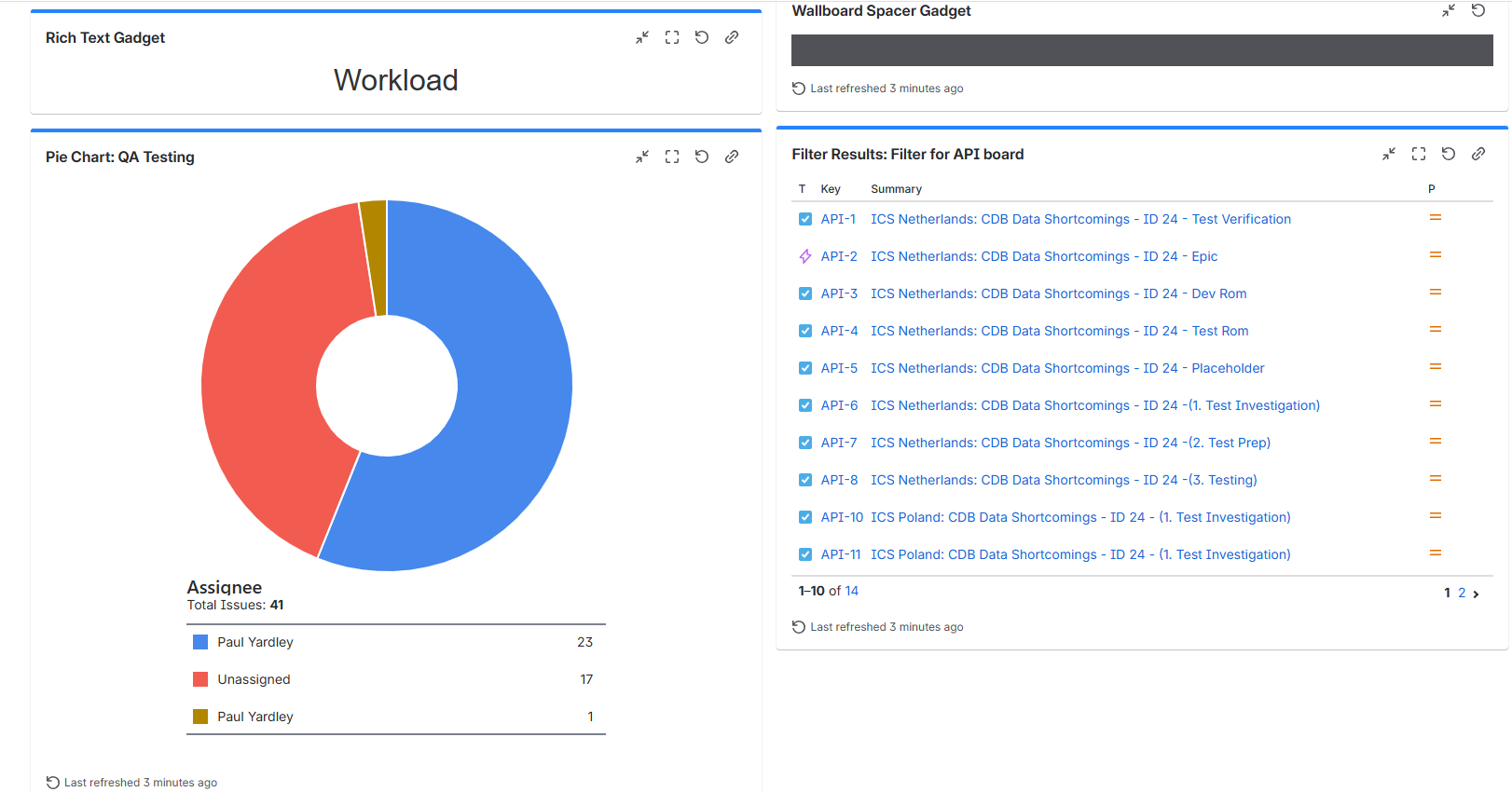 Bottom of the dashboard - we’re back in synch but only because we’ve used Wallboard Spacer Gadgets which are an eyesore and lack fine grain control of spacing.
Jira’s built-in spacer gadget doesn’t help much: each gadget is a fixed block with a title bar, and Rich Text headers are a different size again. Without a way to inject vertical whitespace into the shorter column, there is simply no way to keep the rows in step.
The Better (Paid) Solution
Before reaching for code, it’s worth being honest about what’s already on the market. The Atlassian Marketplace app Dashboard: Drag, Resize & Layout Gadgets is the proper solution to this problem. It gives you free positioning, resizing and layout control over every gadget on a Jira dashboard — exactly what Jira Cloud’s native dashboards are missing.
If you have a budget for it, buy that app. It will solve more problems than just alignment, and it’s maintained by a Marketplace vendor.
What I wanted, though, was:
- A cost-free fix for our specific alignment problem
- A first hands-on experience building a Jira Cloud Dashboard gadget with Atlassian’s Forge platform
- A reusable bit of internal tooling I could deploy to our site in an afternoon
That’s where the Spacer Gadget comes in.
The Solution: A Configurable Spacer Gadget
The idea is deliberately simple: a Jira dashboard gadget that renders nothing visible except a configurable amount of vertical whitespace. Drop one above or below a section header in the shorter column, set the height in pixels, and the rows line up again.
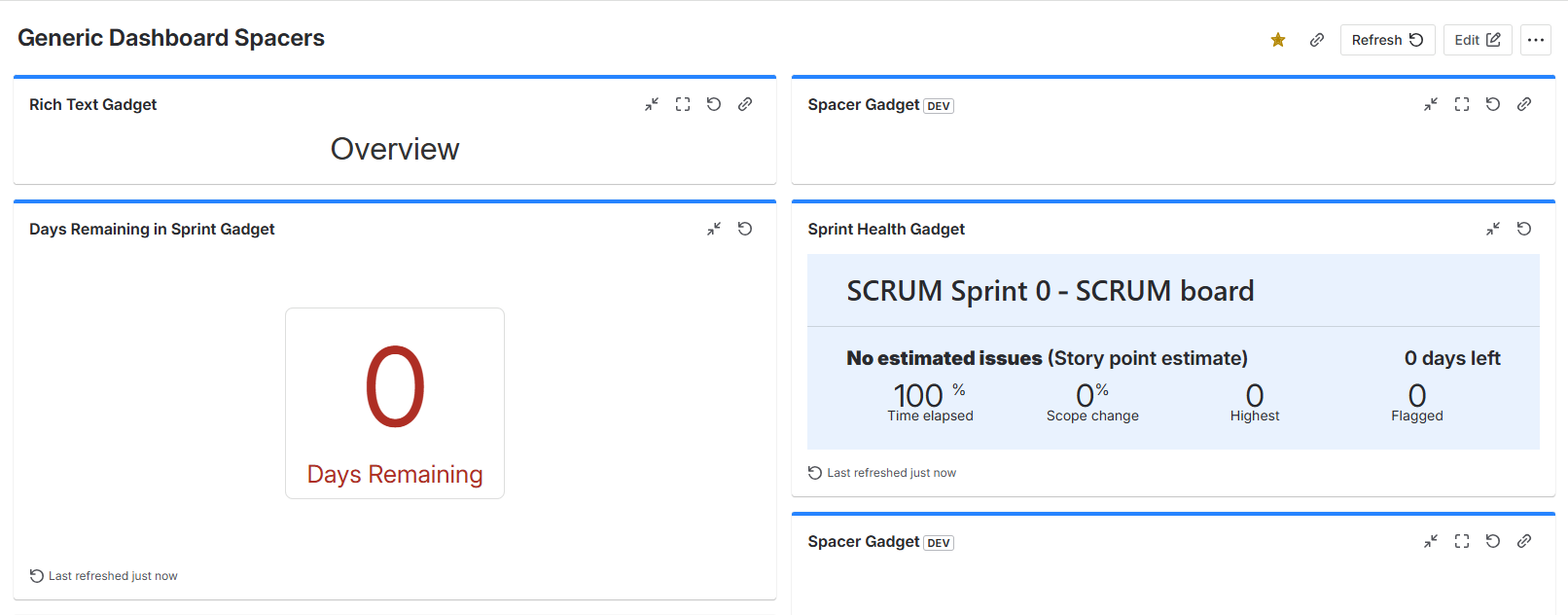
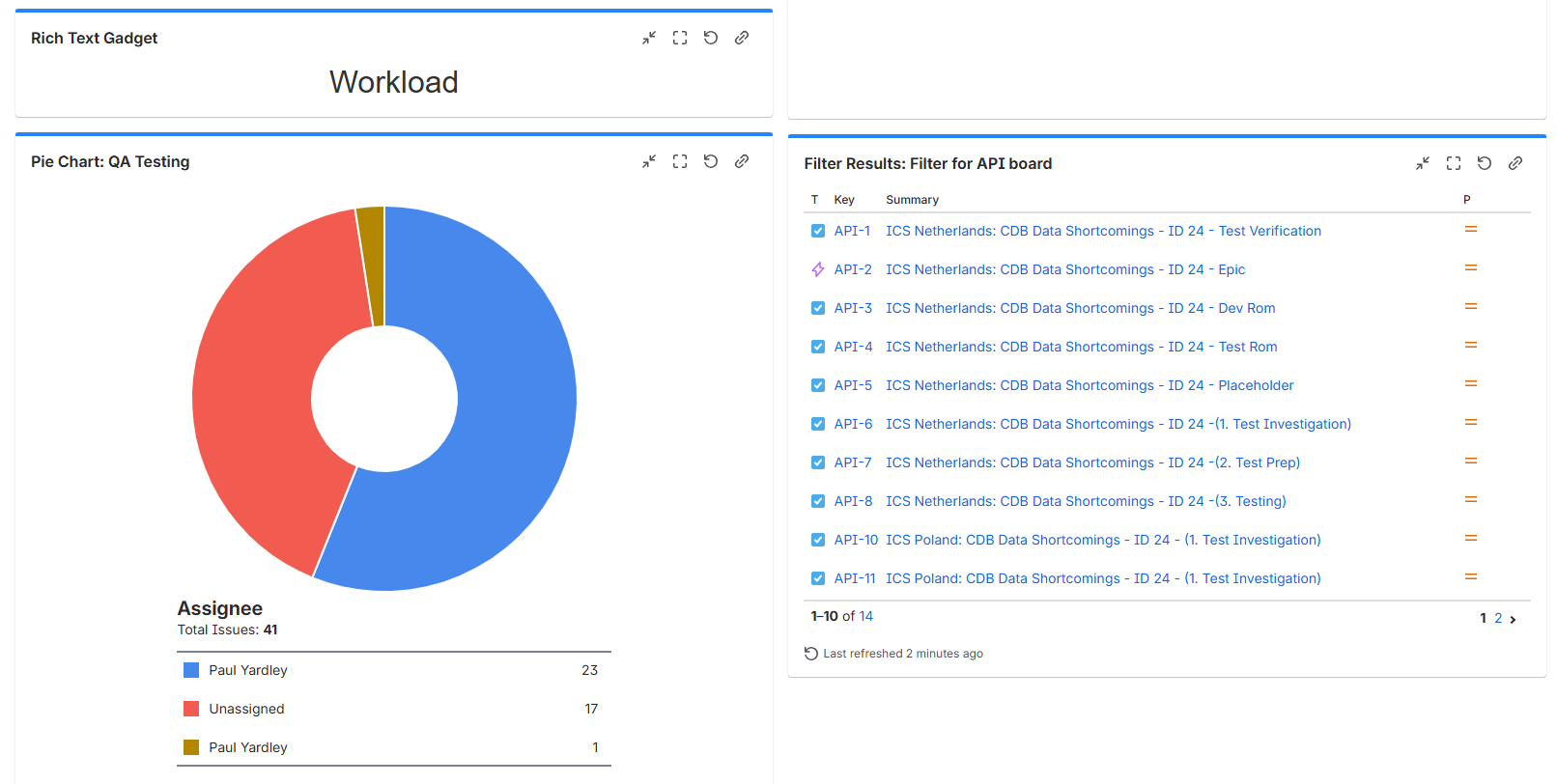 Same dashboard, with Spacer Gadgets pushing the right column down to match the left.
Section headers now sit above the gadgets they describe and the visual story reads cleanly down the screen.
Same dashboard, with Spacer Gadgets pushing the right column down to match the left.
Section headers now sit above the gadgets they describe and the visual story reads cleanly down the screen.
The whole gadget is a few dozen lines of React using Forge’s UI Kit.
How It Works: Forge UI Kit + a Tiny Manifest
Forge ships a jira-dashboard-gadget template that gives you the wiring for a configurable gadget out of the box. The Spacer Gadget keeps almost none of the template’s content — just the structure.
The manifest
The manifest declares a single dashboard gadget module with both a view (what renders on the dashboard) and an edit (the configuration form):
modules:
  jira:dashboardGadget:
    - key: spacer-gadget
      title: Spacer Gadget
      description: Blank spacer for aligning gadgets and section headers
      thumbnail: https://developer.atlassian.com/platform/forge/images/icons/issue-panel-icon.svg
      resource: main
      render: native
      edit:
        resource: main
        render: native

resources:
  - key: main
    path: src/frontend/index.jsx

permissions:
  scopes:
    - "read:jira-work"
The only permission requested is read:jira-work, which is the minimum needed for a dashboard gadget. The gadget never touches issue data — it just renders an empty box.
The view: an empty box of N pixels
The view component reads the saved configuration from useProductContext(), parses the height (with a sensible fallback of 120px), and renders a transparent Box of that height:
const View = () => {
  const context = useProductContext();
  const config = context?.extension?.gadgetConfiguration || {};
  const height = parseInt(config[FIELD_HEIGHT], 10) || 120;

  return (
    <Box
      xcss={{
        height: `${height}px`,
        minHeight: `${height}px`,
        width: "100%",
        backgroundColor: "transparent",
      }}
    />
  );
};
Jira always wraps the gadget in its own chrome (title bar plus padding), so the spacer is never truly invisible — but the body is, and that’s enough to push neighbouring gadgets down by a controlled amount.
The edit form: one number, one gotcha
The edit form is a single numeric field. The interesting part isn’t the form itself — it’s making sure the field is pre-populated with the previously saved value when a user opens “Configure” again. Forge’s useProductContext() can return a context object before extension.gadgetConfiguration is populated, which leads to a classic bug: useForm’s defaultValues capture an empty config on the first render, and the field always shows the default of 120 instead of the saved height.
The fix is to wait for the configuration to be present, then key the form component on the resolved value so useForm re-seeds its defaults if anything changes:
export const Edit = () => {
  const context = useProductContext();

  const gadgetConfiguration = context?.extension?.gadgetConfiguration;
  if (!context || !context.extension || gadgetConfiguration === undefined) {
    return <Text>Loading...</Text>;
  }

  const rawHeight = gadgetConfiguration[FIELD_HEIGHT];
  const initialHeight = rawHeight != null ? Number(rawHeight) : 120;

  // key ensures EditForm remounts (and useForm re-seeds its defaults) if
  // the resolved initial height ever changes after first render.
  return <EditForm key={initialHeight} initialHeight={initialHeight} />;
};
This was the single biggest lesson from building the gadget: in Forge UI Kit, you cannot assume the product context is fully populated on first render, and any form library that snapshots default values at mount time needs to be told to remount when the data finally arrives.
Building, Deploying and Installing
The Forge CLI workflow is genuinely pleasant. After installing @forge/cli globally and running forge create (choosing Jira → UI Kit → jira-dashboard-gadget), the loop is:
forge lint
forge deploy
forge install
forge install prompts for the Atlassian site (in my case pryardley.atlassian.net) and confirms the requested scopes. After a successful install, the gadget appears in the dashboard’s Add gadget picker as “Spacer Gadget”, ready to be dropped into place and configured.
For subsequent code changes:
forge deploy
forge install --upgrade
The whole edit-deploy-test cycle is fast enough that iterating on the configuration form was a matter of minutes per round trip.
Was It Worth It?
For a free fix to a specific alignment problem on one dashboard — yes, comfortably. The gadget is doing exactly what I wanted, and the wallboard now reads cleanly across both columns.
But the real value was the second goal: a low-risk way to build and ship a real Jira Cloud app. Forge took care of the hosting, the authentication, the install flow and the platform integration. All I had to write was a manifest, a view component and an edit form. The total time from forge create to a deployed, working gadget on a live Jira site was a single afternoon, including the time spent diagnosing the defaultValues bug above.
If you’re thinking about building anything for Jira Cloud — even something this small — Forge is a much friendlier on-ramp than I expected. And if your only problem is dashboard layout and you have the budget, Dashboard: Drag, Resize & Layout Gadgets is still the right answer.
Key Takeaways
- Two-column Jira wallboards drift out of alignment the moment your gadgets have differing heights, and there is no native way to fix it.
- A configurable spacer gadget is a tiny, free fix — a transparent
Boxwith a user-controlled height pushes neighbouring gadgets down by a known amount. - Forge UI Kit makes Jira Cloud apps approachable — manifest, one React component, three CLI commands and you have a working installed gadget.
- Watch out for
useProductContext()timing —extension.gadgetConfigurationisn’t always populated on first render; key your form on the resolved value souseFormre-seeds its defaults. - The paid app is still the better solution overall — Dashboard: Drag, Resize & Layout Gadgets does much more than just alignment, but a custom Forge gadget is a great way to scratch a specific itch and learn the platform at the same time.